
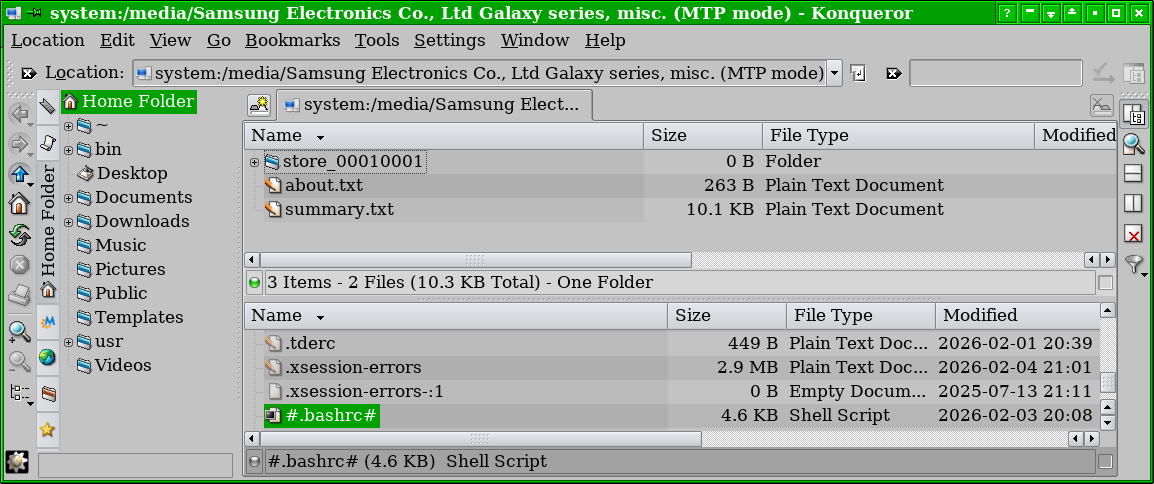
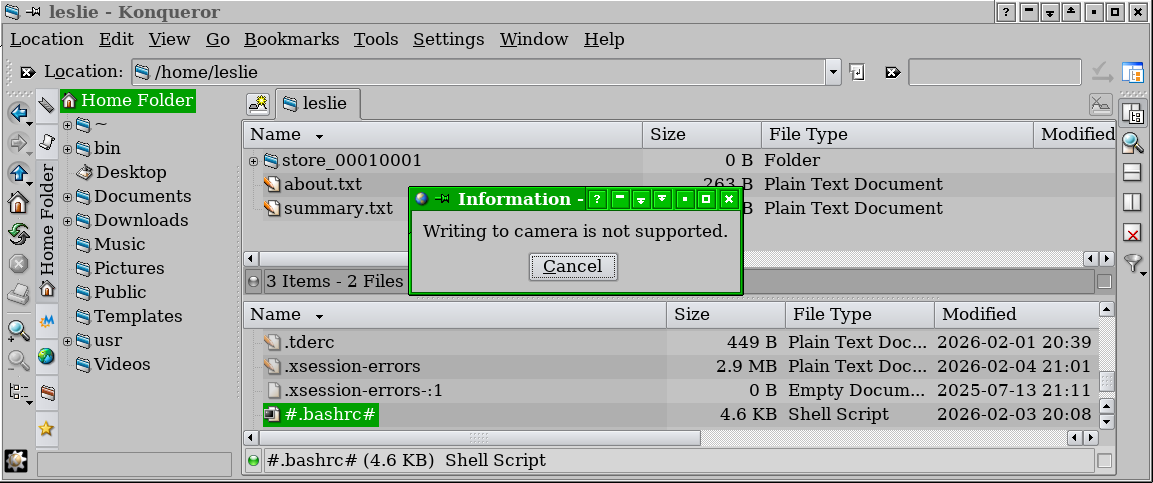
I want to copy some files from my computer to my Samsung phone. I can connect them together, and a Konqueror window opens showing the phone's storage (attachment 1), but when I try to copy a file to it, I get a message, "Writing to camera is not supported." (attachment 2).
The phone has two settings for file transfers: 1) "Transfer media files to a computer via an MTP connection." 2) "Transfer images and other files via a PTP connection if MTP is not supported."
Using either connection method produces the same result. Is there a way to tell Trinity that it's a phone, not a camera?
Leslie

Please forgive the top post.
Your best bet is to email them to yourself and open the email and save the images to your phone.
dep Pictures: http://www.ipernity.com/doc/depscribe/album Column: https://ofb.biz/author/dep/
-------- Original Message -------- On Wednesday, 02/04/26 at 22:38 J Leslie Turriff via tde-users users@trinitydesktop.org wrote: I want to copy some files from my computer to my Samsung phone. I can connect them together, and a Konqueror window opens showing the phone's storage (attachment 1), but when I try to copy a file to it, I get a message, "Writing to camera is not supported." (attachment 2).
The phone has two settings for file transfers: 1) "Transfer media files to a computer via an MTP connection." 2) "Transfer images and other files via a PTP connection if MTP is not supported."
Using either connection method produces the same result. Is there a way to tell Trinity that it's a phone, not a camera?
Leslie ____________________________________________________ tde-users mailing list -- users@trinitydesktop.org To unsubscribe send an email to users-leave@trinitydesktop.org Web mail archive available at https://mail.trinitydesktop.org/mailman3/hyperkitty/list/users@trinitydeskto...

On 2/4/26 7:37 PM, J Leslie Turriff via tde-users wrote:
I want to copy some files from my computer to my Samsung phone. I can connect them together, and a Konqueror window opens showing the phone's storage (attachment 1), but when I try to copy a file to it, I get a message, "Writing to camera is not supported." (attachment 2).
Can't help with the question, but another option would be to transfer the files using Google Drive, Dropbox, Yandex Disk, or whatever you use along those lines.

чт, 5 февр. 2026 г., 07:39 Dan Youngquist via tde-users < users@trinitydesktop.org>:
On 2/4/26 7:37 PM, J Leslie Turriff via tde-users wrote:
I want to copy some files from my computer to my Samsung phone. Ican
connect them together, and a Konqueror window opens showing the phone's storage (attachment 1), but when I try to copy a file to it, I get a message, "Writing to camera is not supported." (attachment 2).
I think I filled issue/feature request for adding
aft-mtp-mount
support to tdebase/tdelibs, but "bugs" page does not work without logging in, so I can't say issue number (will try from desktop).
Look up "Android file transfer" package ?
Can't help with the question, but another option would be to transfer the files using Google Drive, Dropbox, Yandex Disk, or whatever you use along those lines.
-- For PGP key, search on the PGP Global Directory. ____________________________________________________ tde-users mailing list -- users@trinitydesktop.org To unsubscribe send an email to users-leave@trinitydesktop.org Web mail archive available at https://mail.trinitydesktop.org/mailman3/hyperkitty/list/users@trinitydeskto...
On Thu, Feb 5, 2026 at 7:44 AM Andrew Randrianasulu randrianasulu@gmail.com wrote:
чт, 5 февр. 2026 г., 07:39 Dan Youngquist via tde-users users@trinitydesktop.org:
On 2/4/26 7:37 PM, J Leslie Turriff via tde-users wrote:
I want to copy some files from my computer to my Samsung phone. I canconnect them together, and a Konqueror window opens showing the phone's storage (attachment 1), but when I try to copy a file to it, I get a message, "Writing to camera is not supported." (attachment 2).
I think I filled issue/feature request for adding
aft-mtp-mount
support to tdebase/tdelibs, but "bugs" page does not work without logging in, so I can't say issue number (will try from desktop).
https://mirror.git.trinitydesktop.org/gitea/TDE/tdelibs/issues/381
Look up "Android file transfer" package ?
Can't help with the question, but another option would be to transfer the files using Google Drive, Dropbox, Yandex Disk, or whatever you use along those lines.
-- For PGP key, search on the PGP Global Directory. ____________________________________________________ tde-users mailing list -- users@trinitydesktop.org To unsubscribe send an email to users-leave@trinitydesktop.org Web mail archive available at https://mail.trinitydesktop.org/mailman3/hyperkitty/list/users@trinitydeskto...

On Wednesday 04 February 2026 19:37:28 J Leslie Turriff via tde-users wrote:
I want to copy some files from my computer to my Samsung phone. I can connect them together, and a Konqueror window opens showing the phone's storage (attachment 1), but when I try to copy a file to it, I get a message, "Writing to camera is not supported." (attachment 2).
The phone has two settings for file transfers:
- "Transfer media files to a computer via an MTP connection."
- "Transfer images and other files via a PTP connection if MTP is not
supported."
Using either connection method produces the same result. Is there a way to tell Trinity that it's a phone, not a camera?
Leslie
Apologies in advance for the length. If I had more time to spend, I could make it shorter....
I also have a Samsung phone, but long ago gave up on trying to get my machine to be able to connect to my phone in any meaningful way. (Not that I have given up on it altogether; just that I don't really need to use it much. However, I have faith that our Trinity developers will eventually somehow get it working.)
In the meanwhile, for those of us who still have such problems to solve, here and now in the real world, I have three basic methods; I especially recommend the first, which is easy and uncomplicated:
1) Get a USB dongle that attaches to your phone. (My phone has a USB-C connection, but other models may differ.) I plug the dongle into my phone, then coonect a flash drive to the dongle. Transfer your files to the flash drive, then unmount it, plug it into your machine, transfer the files to your machine.
2) Transfer the files to your SD card (if you use one in your phone). Then you have to shut down your phone, take out the SD card, put it into one of those adapters, plug that into the SD slot in your machine.
If it doesn't have an SD slot, then once again you need a USB adapter with an SD slot. (I have a couple of those, too.) This second way is a bit more cumbersome, but since I often listen to music on my phone, and want to listen to my own personal selection, I put those files on my SD card. As I change my music sometimes -- add or delete music files -- I sometimes wait until I have a lot of files to transfer back and forth, then do it all at once.
And now for method #3, which is much more involved to set up, but maybe worth the trouble. Nobody has yet mentioned anything like it, and it works pretty well.
3) Get a jabber/xmpp account. (Actually, get several accounts, especially for this trick.) You can use jabber/xmpp on both your phone and on your machine. If you get an account that includes a lot of extra services, then you will also have file transfer capabilities.
To do it this way, I recommend creating an account here: https://jabber.hot-chilli.net/ https://jabber.hot-chilli.net/account/ Here you can register accounts without giving out any personal information. (Without providing a contact number or email, if you forget your password, then you lose that account. However, it's easy to set up another account, and maybe we learn from our mistakes not to do that again.) I always keep several working and active jabber/xmpp accounts, even if I don't use them much. I just log on now and then, to make sure that I keep them active. One never can tell when it may be useful to have a secure anonymous account that can send messages and files over the Tor network.
Now, lest I didn't make it clear: You need to transfer those files from one jabber account to another. So Bob sends the file to Mary, but those are both your own accounts; one is active on your computer, the other on the phone. (Probably not a good idea to have the same account active on two different devices simultaneously; I've done it, and it doesn't interfere with messages (which appear on both phone and computer), but I believe transferring files would not work so well.
Also ...
For your machine (desktop, laptop, etc.), I recommend using Psi+ (or psi-plus), as this works really well for transferring files. (I also just happen to prefer it over other jabber/xmpp clients; but for this particular task of file transfers, I have got it to work when Pidgin, etc. failed me. Using Psi+ with my jabber account, I was able to transfer single files as large as 1 gb, over Tor, with no problems. Moreover, the transfer only took a few minutes at the time. (I was testing with a friend who lives abroad.)
For your phone, I recommend Conversations Legacy, although there are others. I don't know if it will work to transfer really large files from your phone (probably not 1 gb!), but I was able to transfer photos and mp3s with no problem.
This last way seems a lot of bother to get it set up and working. I don't generally use my phone except as a phone; that is, no internet. However, in my testing, it worked pretty well. And there are times when it is inconvenient to dig through my bags of computer gear to find that dongle (for #1), and I don't want to shut down my phone and take it apart (for #2).
Once you have this way set up, it works without a hitch, and it is sometimes easier than those first two methods. Even though I rarely use my phone for internet, I still keep jabber/xmpp accounts on it, to be used when needed.
Besides this, there is also onionshare and onionshare-cli (available in the Debian / Devuan repositories, so probably in other distros, too). I haven't actually used it, but would like to try it out, if anybody else would like to do some testing with me. It seems to work more or less like what I described in method #3,
Good luck!
Bill

Make your life easy: install termux, run its sshd server, and then scp files back and forth and/or log in.
Having done this a while back, I never bother fussing with any other file transfer methods.
Jim
On Wed, Feb 4, 2026 at 21:37 (-0600), J Leslie Turriff via tde-users wrote:
I want to copy some files from my computer to my Samsung phone. I can connect them together, and a Konqueror window opens showing the phone's storage (attachment 1), but when I try to copy a file to it, I get a message, "Writing to camera is not supported." (attachment 2).
The phone has two settings for file transfers:
- "Transfer media files to a computer via an MTP connection."
- "Transfer images and other files via a PTP connection if MTP is not
supported."
Using either connection method produces the same result. Is there a way to tell Trinity that it's a phone, not a camera?
Leslie
tde-users mailing list -- users@trinitydesktop.org To unsubscribe send an email to users-leave@trinitydesktop.org Web mail archive available at https://mail.trinitydesktop.org/mailman3/hyperkitty/list/users@trinitydeskto...

On 05/02/2026 04:37, J Leslie Turriff via tde-users wrote:
I want to copy some files from my computer to my Samsung phone. I can connect them together, and a Konqueror window opens showing the phone's storage (attachment 1), but when I try to copy a file to it, I get a message, "Writing to camera is not supported." (attachment 2).
The phone has two settings for file transfers:
- "Transfer media files to a computer via an MTP connection."
- "Transfer images and other files via a PTP connection if MTP is not
supported."
MTP is usually the one you want as PTP will be restricted to folders usually accessed by the camera app.
I have installed jmtpfs and fuse (Devuan). I have a couple of scripts, mtpmount.sh and mtpumount.sh in my ~/bin folder as I forget what the program name is since my memory is becoming 'read, maybe'. I have a ~/mtp folder where the scripts mount the phone filesystem. MTP can get slow if graphic programs are used for file management (Krusader in my case) so I use mc.
mtpmount.sh: #!/bin/sh go-mtpfs /home/martin/mtp &
mtpumount.sh: #!/bin/sh fusermount -u /home/martin/mtp
Using either connection method produces the same result. Is there a way to tell Trinity that it's a phone, not a camera?
Leslie
tde-users mailing list -- users@trinitydesktop.org To unsubscribe send an email to users-leave@trinitydesktop.org Web mail archive available at https://mail.trinitydesktop.org/mailman3/hyperkitty/list/users@trinitydeskto...
On 06/02/2026 10:04, Martin Hodges wrote:
On 05/02/2026 04:37, J Leslie Turriff via tde-users wrote:
I want to copy some files from my computer to my Samsung phone. I can connect them together, and a Konqueror window opens showing the phone's storage (attachment 1), but when I try to copy a file to it, I get a message, "Writing to camera is not supported." (attachment 2).
The phone has two settings for file transfers: 1) "Transfer media files to a computer via an MTP connection." 2) "Transfer images and other files via a PTP connection if MTP is not supported."
MTP is usually the one you want as PTP will be restricted to folders usually accessed by the camera app.
I have installed jmtpfs and fuse (Devuan). I have a couple of scripts,
Correction: go-mtpfs not jmtpfs
mtpmount.sh and mtpumount.sh in my ~/bin folder as I forget what the program name is since my memory is becoming 'read, maybe'. I have a ~/mtp folder where the scripts mount the phone filesystem. MTP can get slow if graphic programs are used for file management (Krusader in my case) so I use mc.
mtpmount.sh: #!/bin/sh go-mtpfs /home/martin/mtp &
mtpumount.sh: #!/bin/sh fusermount -u /home/martin/mtp
Using either connection method produces the same result. Is there a way to tell Trinity that it's a phone, not a camera?
Leslie
tde-users mailing list -- users@trinitydesktop.org To unsubscribe send an email to users-leave@trinitydesktop.org Web mail archive available at https://mail.trinitydesktop.org/ mailman3/hyperkitty/list/users@trinitydesktop.org
-
 Andrew Randrianasulu
 -
 Dan Youngquist
 -
 dep
dep -
 J Leslie Turriff
 -
 Jim
Jim -
 Martin Hodges
 -
 William Morder